
Short answer: Setting up 5651 on FortiGate has three parts: sending traffic/threat logs to izgate via syslog; creating a limited-privilege REST API user on FortiGate for guest Wi-Fi provisioning and device verification; and pointing FortiGate's captive portal to izgate's portal address as an "external" portal. All three are shown with ready-to-copy steps specific to your device in the panel's "Firewall Setup" and "Log Delivery" tabs.
Why two channels?
The obligation to keep access records under Law No. 5651 applies regardless of which device you use:
"Erişim kayıtlarını elektronik ortamda kendi sistemlerine kaydetmek ve iki yıl süre ile saklamak."
"To record access logs electronically on their own systems and retain them for a period of two years."
Regulation on Internet Public Use Providers, Art. 4/1-b — unofficial translation — mevzuat.gov.tr
Meeting this obligation requires your logs to reach izgate completely and continuously — that's the syslog channel's job. On the guest Wi-Fi side, a session needs to be opened that's matched to the verified person's identity; on FortiGate this is done through the firewall's own management API and does not require RADIUS. For the general framework, see the Law No. 5651 guide.
1. Sending logs via syslog
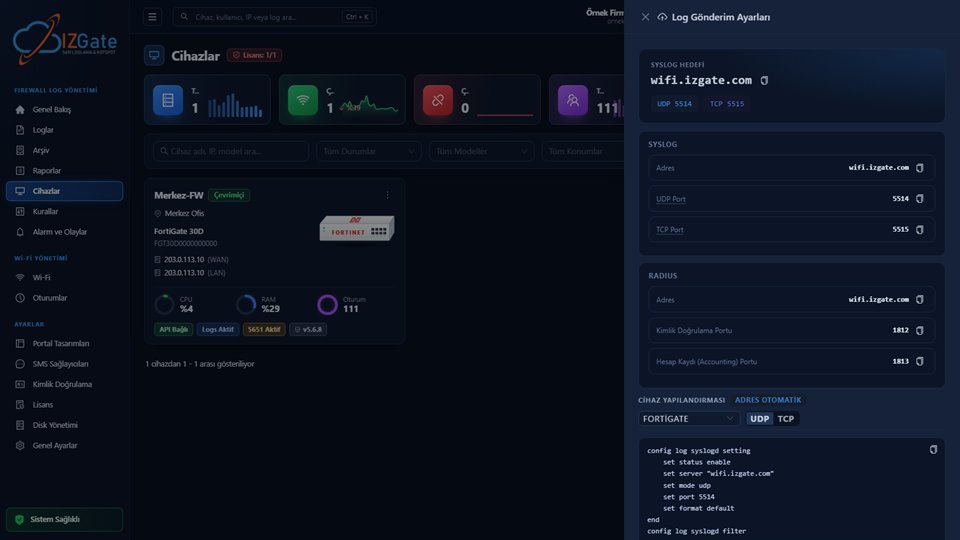
When you select FortiGate as the driver on the Devices page and register it with its serial number, the "Log Delivery" panel opens right after registration. This panel shows you the syslog destination address and the port to use (UDP 5514, delivery-guaranteed TCP 5515, or TLS 6514 if a certificate is defined); a ready-made CLI command block is generated for FortiGate, which you copy and paste into FortiGate's command line. Because FortiGate is a device that carries a serial number, pre-entering the address in the panel isn't required — the device's address is learned automatically once the first log arrives.
2. REST API user and key
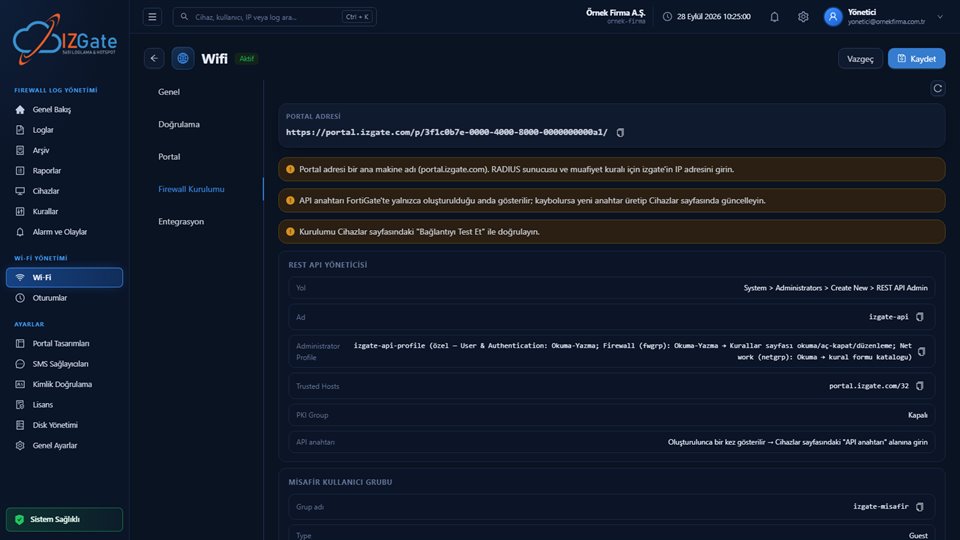
For guest Wi-Fi provisioning and device verification, you need to create a separate REST API administrator on FortiGate. The panel's Wi-Fi > Networks > relevant network > "Firewall Setup" tab lists these steps specific to your FortiGate, as copyable fields:
- Path: in the FortiGate management interface, System > Administrators > Create New > REST API Admin.
- Recommended name:
izgate-api. - Administrator Profile permissions: User & Authentication (read-write), Firewall/fwgrp (read-write), Network/netgrp (read) — the smallest permission set izgate needs to open/close guest users and read your rules.
- Trusted Hosts: the izgate portal's address, as a single /32 (e.g., the resolved address of
portal.izgate.com/32) — the API cannot be reached from any other source.
The API key you create on FortiGate is only ever shown once, at the moment it's created; if you close the window without copying it into the panel, you'll need to generate a new one. After entering the API key in the panel, use "API Test" on the Devices page to verify the connection, the certificate fingerprint, and the serial number match.
3. External captive portal
Your guest network's portal address (generated uniquely per network in the panel, e.g. portal.izgate.com/p/<network-id>/) is defined on FortiGate as an "external captive portal"; the guest's browser is redirected to this address. Once verification is complete, izgate sends a POST request to the fgtauth endpoint via FortiGate's own management API; FortiGate accepts this request through its own "magic" authentication and treats the guest as locally signed in. This way, authentication is closed between the browser, izgate, and FortiGate, and no credentials leave the network.
As noted in the warnings on the Firewall Setup tab, the portal address is a hostname; for some FortiGate settings that require an IP address, such as a RADIUS server definition or an exemption rule, you'll need to enter izgate's real IP address separately.
4. Exemption list
Devices without a browser — printers, access-card readers, robot vacuums — can't pass through the captive portal. These devices show up in the izgate panel's "Unrecognized Devices" list; registering one there with a single click automatically applies the portal exemption (bypass) on FortiGate, and the device gets onto the network without being redirected to authentication again.
5. Guest user group
For every verified guest, izgate opens a temporary account in a pre-defined guest user group on FortiGate (recommended name: izgate-misafir, Type: Guest); the account is assigned a fixed alias code for the person (e.g. mg-4a300c), and the real identity (phone number, Turkish ID number) is never written to FortiGate at all. When the session expires or an administrator blocks the guest, izgate deletes this temporary user through the same API; access ends immediately.
6. Verification and current status
Once setup is complete, "API Test" on the Devices page verifies the connection, the certificate fingerprint, and the serial number match; a FortiGate-specific "fix session setting" option prevents early drops during guest handover if the idle timeout is set short. The entire flow — captive portal redirect, authentication, opening the mg-… alias code, and its appearance in the traffic log — has been verified end to end in the field on a real FortiGate device (FortiOS 5.6.8).
Day to day: when a request arrives
The example below describes what happens when a request arrives for a business running FortiGate on its guest Wi-Fi.
An authority requests information about an action performed from the business's guest network at a specific time.
The traffic record FortiGate sent via syslog is searched matched against the mg-… alias code assigned to the guest at the moment of authentication.
The internal IP, destination, and NAT IP:port information for the relevant time window is pulled from the signed archive and exported.
What matters in this example isn't the log record itself, but the fact that the record is matched to an identity — that's what makes a request answerable. The syslog channel alone collects traffic but doesn't say who it was; the guest user opened via REST API, and the alias code assigned to them, is what links these two pieces together. For the role NAT port information plays in this match, see the NAT and port information guide.
Checklist
- Was the device registered with its serial number, and was the address learned automatically after the first log arrived?
- Was the syslog destination and port (UDP 5514 or TCP 5515) applied on FortiGate?
- Was the REST API user (
izgate-api) created with the correct permission profile and the Trusted Hosts restriction? - Is the guest user group (
izgate-misafir, Type: Guest) defined? - Is the captive portal pointed to izgate's portal address as "external" on FortiGate?
- Did you verify the connection, the certificate, and the serial match with "API Test" on the Devices page?
Frequently asked questions
Do I need to set up RADIUS on FortiGate?
Not for guest Wi-Fi handover; this flow runs through FortiGate's own management API. RADIUS on FortiGate can only be used for staff authentication on your office Wi-Fi.
Why give the REST API user such narrow permissions?
This is the smallest permission set izgate needs to operate: opening and closing guest users (User & Authentication), being able to show your rules on the Rules page (Firewall/fwgrp), and reading network objects (Network/netgrp). Trusted Hosts ensures access is only accepted from izgate's address.
I lost the API key — what should I do?
The FortiGate API key is only shown once, when it's created. If you lose it, generate a new key for the same user under System > Administrators and update it on the Devices page.
Should I set up syslog and REST API at the same time?
Yes, they do different jobs: syslog carries traffic/threat records (the 5651 access record), while REST API handles guest Wi-Fi provisioning and device verification. Syslog alone is enough for 5651 logging; if you want to hand off guest Wi-Fi to the FortiGate API, the second step is also required.
Has this setup been tested in the field?
Yes. Log collection via syslog and guest handover via REST API — from the captive portal redirect to the alias code appearing in the traffic log — have been verified end to end on a real FortiGate device (FortiOS 5.6.8).
If you have more than one FortiGate, each one needs its own syslog configuration and (if guest Wi-Fi is used) its own REST API user; all of them appear together in the same izgate panel, the same search screen, and the same signed archive.
This page is for information only; for the current text of the legislation, refer to the official source (mevzuat.gov.tr).