Verify guest Wi-Fi identity in seconds, and prove the record.
Your guest connects to the network, is redirected to the izgate portal, verifies their identity with the method you chose (SMS, Turkish ID, visitor code and more), and accepts the privacy notice. izgate opens a temporary user just for them on your firewall; internet access starts within seconds, and their raw identity is never written to the firewall.
Every guest network follows the same basic flow; only the verification method and the portal design change from one network to another.
1
Connect
The guest connects to your network; their device's browser is automatically redirected to the izgate portal address (/p/<network-id>/).
2
Verify
Identity is verified with the method you chose (SMS, Turkish ID, visitor code, admin approval…), and the privacy notice and terms of use are accepted.
3
Hand off
izgate opens a temporary user on your firewall (via the FortiGate REST API or RADIUS) under a fixed alias code (mg-xxxxxx); the raw identity is never written to the firewall.
4
Close when time's up
When the session expires, izgate deletes the temporary user on the firewall via the API; access closes automatically and the record stays in the signed archive.
izgate never writes a guest's real identity (phone number, Turkish ID number) to the firewall or to traffic logs. Only a fixed alias code (like mg-4a300c) appears in the logs for that person; the alias-to-identity mapping is kept encrypted only inside izgate and is resolved only on the authorized search screen.
10 login methods
A verification path for every guest profile
Combine methods per network however you like, and add a network password or a session-time/quota limit.
SMS verification
A one-time code is sent to the guest's phone. Netgsm, İleti Merkezi, or a generic HTTP-based SMS provider can be connected; you can define more than one and set one as default. The provider's secret is kept encrypted in the panel, a test message can be sent, and it never appears in search results again.
On iPhone, the captive window closes when the user switches to the Messages app, and cookies don't carry over. izgate solves this two ways: it finds the pending SMS session by the device's MAC address and reopens the OTP screen with the same code (code continuity), and it marks the code field with autocomplete="one-time-code" so iOS can suggest the code automatically.
Turkish ID + NVİ verification
The guest enters their Turkish ID number, first name, last name and birth year in separate fields; the information is verified against the NVİ Identity Sharing System (KPS) looking for an exact match.
When NVİ verification is required on a network (tckn_kps), the login is rejected if the provider can't be reached or the information doesn't match — it is never silently accepted as a "self-declaration." The verification source (kps / declared) is recorded separately on every entry, so it's always clear which logins were confirmed against population records.
Current status: NVİ's public-facing lookup service is currently closed to access; real-time NVİ verification is ready in the software and will activate once a connection to the institutional KPS protocol (username/password) is established. Until that connection is in place, NVİ verification can't be enabled on a network; in the meantime you can continue with other methods (SMS, visitor code, admin approval, etc.).
Visitor code
Front desk or security staff generate codes in bulk from the panel: a label (e.g. "Meeting Room A"), an expiry date, a use-count limit and a per-session duration. Codes can be exported as CSV and printed.
The guest enters the code in the portal; izgate converts it into a person-specific alias code and decrements the use counter. A code that reaches its quota or expiry becomes invalid automatically.
Admin approval
The guest sends a request, and front desk or security staff approve it with one click from the "Pending Approvals" list in the panel. Approval turns the session into a verified one; the identity information is produced on the guest's own device, and nothing is sent to the approver. An unapproved request expires after 30 minutes.
User account
Login with a username/password defined for staff, members or subscribers. If your organization already manages a list of identities (students, members, staff), it can be matched directly with this method.
Organization lookup (external query)
At the moment of verification, the portal makes an API query to your own organization's system (e.g. hotel PMS, hospital patient system, university student information system); it checks in real time whether the guest is on record with your organization and grants access based on the result.
Pre-registration (via API)
Your organization's system registers the guest with izgate ahead of their arrival, via API (an endpoint protected by a network-specific key). In the portal, the guest only enters a short detail like a phone number or full name to confirm their registration; if a network password is set, it's used as well.
Firewall user
Direct login with a username and password already defined on the firewall; the identity is checked directly on the firewall, and izgate only handles the redirect and the record. The password is never stored or logged anywhere.
Device registration (MAC)
The guest's device is registered by its MAC address and added to the "registered device" list with admin approval; this device then connects without being asked for identity again, for an unlimited period (suited to permanent staff and organization-owned devices).
A registered device's access can be shut off instantly from the "Registered Devices" list in the panel; doing so also deletes the firewall user for that device at the same time.
Remember device
Once verified by any other method, a guest's device is remembered for the period you set (e.g. 24 hours); a returning guest within that period isn't asked for a code or identity again, and a new grant is opened under the same person's name.
Portal design
The login page is yours; the verification is izgate's
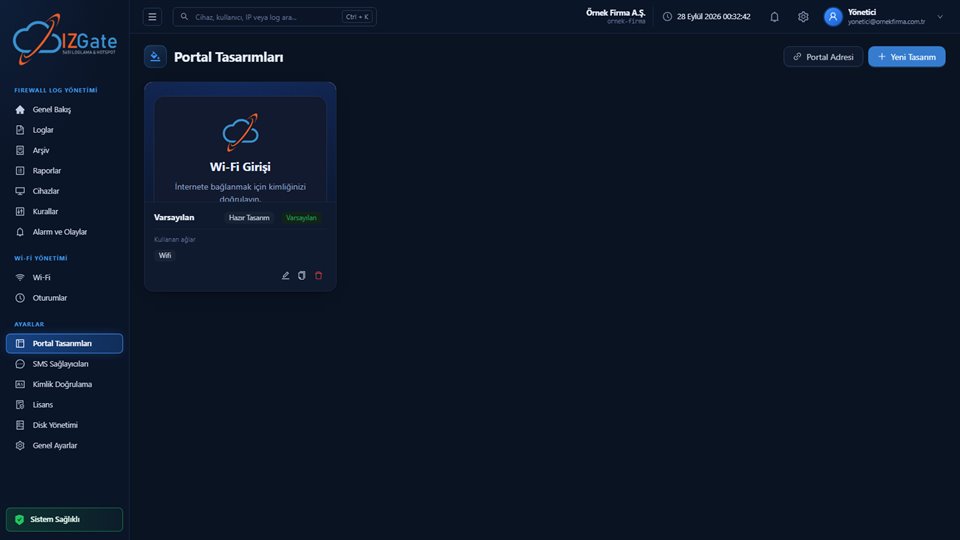
The first screen your guest sees should be the face of your organization. izgate offers two paths; both come with a live preview before you go live.
Ready-made themeLogo, brand colors, privacy notice and terms of use; TR/EN language options edited independently.
Your own HTML designWrite your own page or upload it as a ZIP (images, CSS, JS, fonts). The page must contain the {{izgate.content}} placeholder — the verification flow always stays izgate's and can't be bypassed.
Live previewSee exactly how your changes will look with the real template before publishing them in the panel.
Network access passwordIn addition to verification, you can require that only people who know the network's password can even see the portal.
Portal Designs: a ready-made theme or your own HTML, with a live preview.
Security
Identity only ever goes to the address you trust
Handing a verified guest off to the firewall only ever goes to the secure destinations you define.
Device-specific, internal-network-only handoff
Handoff happens through each device's own method: FortiGate's fgtauth POST + magic token, MikroTik hotspot's link-login-only, pfSense's portal_action. The destination can only be a private network address (RFC1918/CGNAT) or the network's defined handoff list; identity is never sent outward.
Alias code, not raw identity
The firewall and traffic logs get a fixed alias code (mg-xxxxxx) for the person, never their real identity; the mapping is kept encrypted only inside izgate.
Automatic deletion when time's up
When a session expires, is rejected, or is blocked by an administrator, the guest's temporary user on the firewall is automatically deleted via the API.
Managed from the panel
Day-to-day operations in one panel
The tasks your front desk or security team handles every day are completed in a few clicks, with no technical knowledge required.
Pending Approvals
Admin-approval and device-registration requests are collected in one list; each request is approved or rejected with one click.
Registered Devices
All devices registered by MAC are listed; a device causing problems can be cut off instantly from the panel.
Visitor Codes
Bulk code generation, labeling, expiry/use limits and CSV export are all managed from one screen.
Settings > Authentication
NVİ (KPS) mode — off, the public-facing service, or the institutional KPS protocol (endpoint/username/password) — is configured here along with a sample-person connection test; SMS provider and firewall API connections are also in this section.
Sessions
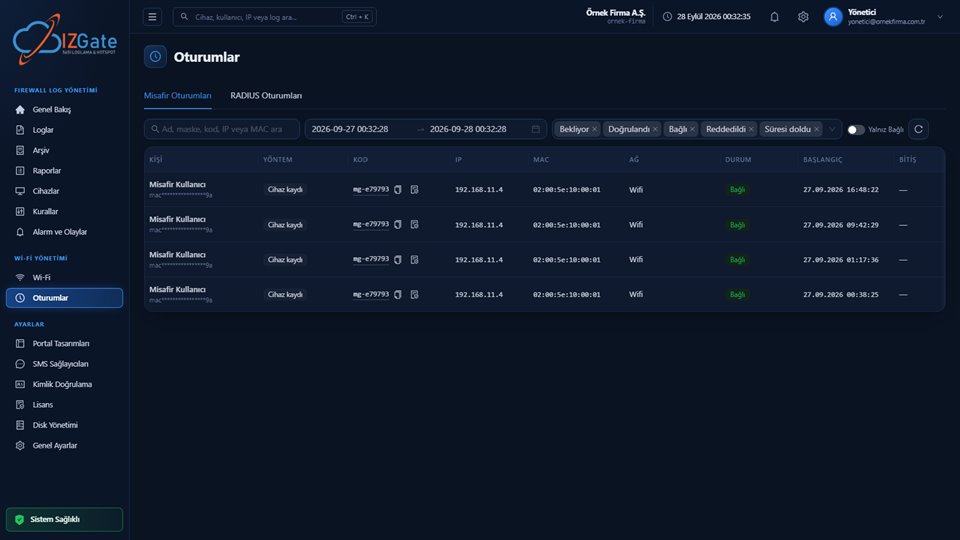
"Guest Sessions" (method, alias code, firewall user status) and "RADIUS Sessions" are listed in separate tabs.
Guest Desk permission
Front-desk staff can be given a narrow sub-user permission (guest_desk) that opens only the Pending Approvals, Visitor Codes and Sessions screens.
The setups below are typical starting points; you can change the methods per network however you like.
Industry
Typical method setup
Hotel
Room number + organization lookup (PMS) query, admin approval at the front desk, visitor code for long stays
Hospital
SMS verification for patients/companions, user account for staff, time-limited visitor code in the visitor area
Mall / café
SMS or Turkish ID for fast access, a short session duration, "remember device" so frequent customers aren't asked again
School / university
User account or organization lookup for students/staff, admin-approved visitor code for guests
Factory
Admin approval at the front desk plus MAC device registration for visitors, time-limited visitor code for contractor staff
Office tower
SMS or Turkish ID on the guest network; separate RADIUS-based staff login on the office network
Public sector
Mandatory Turkish ID + NVİ verification, visitor code only for companions/delegations with admin approval
Sessions: Guest Sessions and RADIUS Sessions in separate tabs.
Office Wi-Fi
RADIUS-based authentication for your staff network
Separate from the guest network, manage staff connections on your office Wi-Fi with RADIUS.
RADIUS PAP + local usersPAP authentication with staff username/password defined in izgate, MAC lists and an expiry date; the NAS secret comes from the device record.
Session tableUser, MAC, IP, connection duration and traffic volume in one table, matched automatically with firewall logs. A session gone silent (accounting stopped) closes automatically after 30 minutes.
802.1X/EAPCertificate-based enterprise authentication is on the roadmap; today, RADIUS PAP with the local-user model is supported.
Technical details
Parameters configurable per network
Every guest network is configured independently, with its own portal address, verification method combination, and timing settings.
Portal address
A unique address in the form /p/<network-id>/ is generated per network; this address is defined on the firewall as the "external captive portal."
Session duration
Set per network in minutes; the temporary firewall user is automatically deleted once it expires.
Network access password
Optional; when set, only guests who know the password can reach the portal.
Remember-device duration
Set per network in minutes (suggested default: 24 hours); the same MAC address is re-authorized automatically within that period.
Handoff destination
Only private network addresses (RFC1918/CGNAT) or the network's defined handoff list; handoff is never made to a public internet address.
Language support
Portal text (privacy notice, terms, interface) is edited separately and independently for TR/EN; a language switch can be offered to the guest on the portal.
Auth path
One of API (FortiGate REST) or RADIUS (MikroTik, pfSense, OPNsense) is selected per device.
RADIUS (general)
Auth 1812 / Accounting 1813 UDP; packets are verified with Message-Authenticator via HMAC-MD5 and silently dropped if invalid. Accounting-On/Off only closes that NAS's sessions.
Privacy notice & terms
Texts are customized per network/theme; the portal flow isn't completed without the guest's acceptance.
Frequently asked questions
About guest Wi-Fi
How can I be sure guest identity never reaches the firewall?
For a verified guest, izgate opens a temporary user on the firewall under a fixed alias code (mg-xxxxxx). Real identity information — phone number, Turkish ID number — is never written to the firewall; only the alias code appears in logs and traffic records. The alias-to-identity mapping is stored encrypted only inside izgate.
Is Turkish ID login really verified against population records?
When NVİ verification is enabled on a network, the entered Turkish ID number, first name, last name and birth year are checked against the NVİ Identity Sharing System (KPS) looking for an exact match; the login is rejected, not silently accepted as a "declaration," if the provider is unreachable or the data doesn't match. Current status: NVİ's public-facing lookup service is currently closed to access; real-time verification is ready in the software and will activate once a connection to the institutional KPS protocol (username/password) is established.
Which SMS providers can I use?
Netgsm, İleti Merkezi and a generic HTTP-based provider are supported; you can define more than one and set one as default. Provider access details are kept encrypted in the panel and never appear on search screens.
My guest's connection drops on iPhone — do they have to re-enter the code?
Because of how iPhone handles the captive window, the window can close when the user switches to the Messages app. In that case, izgate recognizes the pending SMS session from the device's address and reopens the login screen with the same code; the code field also supports iOS's automatic code suggestion.
Can I generate and distribute visitor codes in bulk?
Yes. You can generate as many codes as you like from the panel; define a label, expiry date, use-count limit and per-session duration for each, and export the list as CSV to print.
Can I design the portal myself?
Yes. You can customize the ready-made theme with your logo and colors, or upload your own HTML page (as a ZIP with images/CSS/JS if needed). The only requirement is that your page contains the {{izgate.content}} placeholder, which keeps the verification flow managed by izgate.
How does a guest's device connect again without entering a code?
There are two ways: "remember device" means a device verified once isn't asked again for the period you set; "device registration" means a device that's passed admin approval is permanently recognized by its MAC address and connects for an unlimited period. Access from the second method can be cut off instantly from the panel at any time.
Can I use 802.1X on office Wi-Fi?
Right now, office Wi-Fi supports RADIUS PAP with local-user authentication. Certificate-based 802.1X/EAP authentication is on the roadmap.