
Per-device seat
The license is bought annually per firewall device and assigned or moved to whichever device you want from the panel.
Buy izgate Cloud online and have your account live right away, or deploy izgate on your own server with Docker and run it under IzGate License. Both models have the same features and the same signed-archive guarantee. Below you'll find the setup steps, port list and license terms for each model.
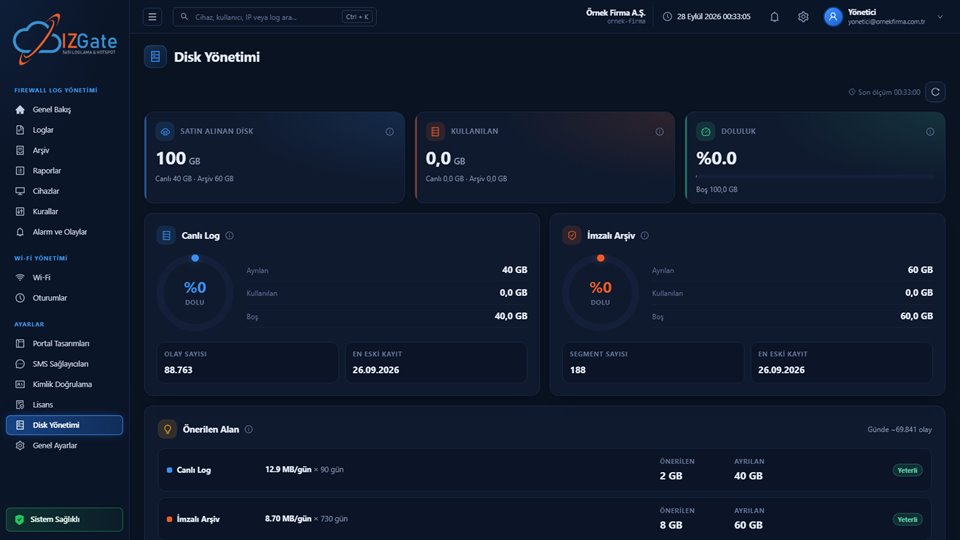
If you don't want to run your own server, izgate Cloud delivers the same features through an account hosted by İzHost. Your account opens automatically once the order is completed on the /satin-al page; you just use your panel.
Your logs never leave your organization. izgate is deployed with Docker on a single Linux server and managed from the panel.
Why two separate disks? Live logs and the signed archive have different access patterns; a separate disk isolates the archive's integrity from the live write load, protects performance, and means one side filling up doesn't put the other's records at risk.
A Linux host with Docker installed, 2+ CPU, 4 GB RAM, and two separate disks for /log and /archive.
The install script formats and mounts the disks and brings up the Docker stack.
The panel opens at http://<server>:8080; the admin password is written to the log once during initial setup.
Enter your İzHost license key under Settings > License.
Devices > New Device: enter the name, type and serial number; the address is learned automatically from the first log. The "Log Shipping" screen generates the configuration to apply on the firewall.
Define the portal address on the firewall as the external captive portal; choose your login methods.
Keep the following ports open when planning firewall rules and VLAN routing.
| Service | Port | Protocol | Description |
|---|---|---|---|
| Admin panel / API | 8080 | TCP (HTTP) | izgate-server: panel, API, license, search |
| Guest portal | 8443 | TCP (HTTPS) | izgate-portal; exposed only to the guest VLAN |
| Syslog (fast) | 5514 | UDP | Firewall traffic/threat logs |
| Syslog (reliable) | 5515 | TCP | Guaranteed-delivery log shipping |
| Syslog (encrypted) | 6514 | TLS | Encrypted log shipping, if a certificate is configured |
| RADIUS authentication | 1812 | UDP | Office Wi-Fi and guest handoff on some devices |
| RADIUS accounting | 1813 | UDP | Session start/end records |
In the on-premises model, the license belongs not to the whole install but to each individual firewall device. Pick only the modules you need, and pay only for those.
The license is bought annually per firewall device and assigned or moved to whichever device you want from the panel.
Hotspot (guest Wi-Fi), Wi-Fi (office RADIUS) and 5651 (log archive) modules are enabled separately; take only what you need.
The license request is encrypted to İzHost's public key, and the response is a digitally signed document; the document can't be bypassed by manually editing something on the server.
If the İzHost license center can't be reached because of an internet outage, the system keeps running at full capacity for 3 days; if the connection comes back before that time's up, the outage is never felt.
Even without a license seat for a device, syslog collection and signed archiving aren't interrupted; only that device's search, statistics and guest portal screens go dark.
The license state is shown in the panel's top bar and on the Settings > License page.
| State | Meaning |
|---|---|
valid | License is valid, all features are on. |
missing | No key has been entered. |
invalid | The center rejected the key (expired, revoked, over quota, etc.). |
unreachable | The center can't be reached; the panel keeps working through a 3-day countdown tolerance, then locks once it runs out. |
suspended (cloud only) | Tenant is suspended: the portal and panel display shut off, collection continues. |
disabled (cloud only) | Tenant is disabled: login and existing sessions are refused, data is never deleted. |
In an unlicensed or invalid state, log collection and archiving continue; only search, statistics and device metrics are hidden, and the guest portal returns a "license required" error — no record is ever lost.
Both models have the same features; the difference is who's responsible for the server and the disk.
| Feature | Cloud | On-premises |
|---|---|---|
| Where your data lives | İzHost data center | Your own server |
| Server and maintenance responsibility | İzHost's | Yours |
| Disk management | İzHost's; you set the ratio | Yours (two separate disks set up) |
| Pricing basis | Firewall license count + log storage space (GB) | A license per connected firewall |
| Account setup | Automatic after checkout (/satin-al) | Via the install script, by quote |
| Version upgrades | Handled by İzHost | Started by you from the panel |
| Log collection and archiving | Same architecture | Same architecture |
In an on-premises install, install.sh requires separate physical disks for /log and /archive and stops the setup if that condition isn't met. There are three reasons for this. The first is integrity: when the signed archive is physically isolated from the live log's write load, a disk problem on the live side doesn't affect the archive. The second is performance: the live disk, constantly written to by the column-oriented ClickHouse database, has a different access pattern than the archive disk, which is written rarely but read occasionally; a separate disk lets each run at its own speed. The third is fill-level isolation: when the live log disk starts filling up, it doesn't affect how full the archive disk is, so the risk of the signed archive failing to write stays independent of a surge on the live side.
The admin panel (8080) and the guest portal (8443) deliberately run as separate processes: the portal is only exposed to the guest Wi-Fi VLAN and carries no management API, so a device on the guest network can never reach the admin panel. The RADIUS ports (1812/1813) are used both for office Wi-Fi user authentication and for guest handoff on some firewall models, and are usually configured to be reachable only from the internal network.
On-premises license verification begins with a request that the izgate instance on your server sends to the İzHost license center. This request is encrypted to İzHost's public key; İzHost verifies the information the server provided and returns a digitally signed, time-limited document. izgate decides the license state purely by verifying this signed document; manually editing the license field in the database opens nothing, because the gate trusts the signed document, not the record. If the center can't be reached because of an internet outage, the system keeps working at full capacity for up to three days; if that period also runs out, the device drops into an unlicensed state, but log collection and archiving continue without interruption.
In izgate Cloud, your total disk space is split between live logs and the archive by default at a 30/70 ratio; the live side needs at least 10 GB. As your usage pattern changes (for example, if you want a longer archive retention period), you can re-set this ratio from Settings > Disk Management. The panel shows a warning once fill level crosses a certain threshold, but records are never automatically deleted because of disk fill level.
For organizations that want to move between on-premises and cloud, the operating logic doesn't change, since both models share the same log, search and archive architecture; what changes is only who's responsible for the server and the disk. As your device count or log volume grows, you can buy additional license seats and scale up your hardware in the on-premises model, or increase disk and device capacity with a plan upgrade in the cloud model.
Once the panel is up and the license key is entered, the first task is usually adding your firewall as a device and applying the configuration on the "Log Shipping" screen to the device. Once the log flow is verified, you can define your guest Wi-Fi network and enter the portal address on the firewall as an external captive portal, and add the RADIUS shared secret to the device record for your office Wi-Fi. Thanks to the modular license structure, you can start by enabling only the modules you need (hotspot, office Wi-Fi, 5651 log archive) and bring the others online as your needs grow.
After discussing your organization's network structure, firewall brand, device count and retention needs, the right deployment model and license scope are worked out together. No pricing is shared on this page; for a quote tailored to your size, simply use the demo request form.
There's no automatic update in an on-premises install; when a new version is released, the upgrade is started by you from the panel, so you can schedule it around your own maintenance window. In izgate Cloud, server maintenance and version upgrades are carried out by İzHost; you just keep using your panel. In both models, release notes are published in short, plain language without technical detail.
Live logs and the signed archive have different write patterns; a separate disk protects integrity, performance and fill-level isolation. The install script (install.sh) enforces this separation and stops the setup if the disks aren't separate.
You can buy izgate Cloud directly online from /satin-al right away; this suits you if you want to avoid the burden of a server, disk and maintenance. If your logs must never leave your organization, IzGate License (on-premises) is the right fit; this model is currently available through a quote process. Both models have the same features.
In an on-premises license, if the İzHost center can't be reached for 3 days, the system keeps working at full capacity; after that, the license state moves from unreachable to invalid/locked: log collection and archiving continue, but search, statistics and the guest portal screens go dark. If a cloud tenant is suspended or disabled, data is never deleted either.
In izgate Cloud, pricing is calculated instantly on the purchase page based on your firewall license count and log storage needs. For on-premises IzGate License, pricing depends on the number of firewall devices and the modules chosen; you can use the demo request form for that.
In the cloud, the account opens automatically after checkout. For an on-premises install, once the server and disks are ready, the install.sh script brings the stack up within minutes; the system is ready to receive logs once the first device is added and log shipping is configured.
Configure izgate Cloud based on your number of firewall devices and storage needs; no setup, get started in minutes. Call us with any questions.